February Product Updates: an extensive list of new features
This month, we’re introducing dedicated Page statistics, a brand-new Contact form component in Page Builder, smarter tag management, extended API capabilities, and major performance improvements in Schedules. We’ve also improved publishing clarity, strengthened automatic design adaptability, and resolved several important issues affecting media display.
New features
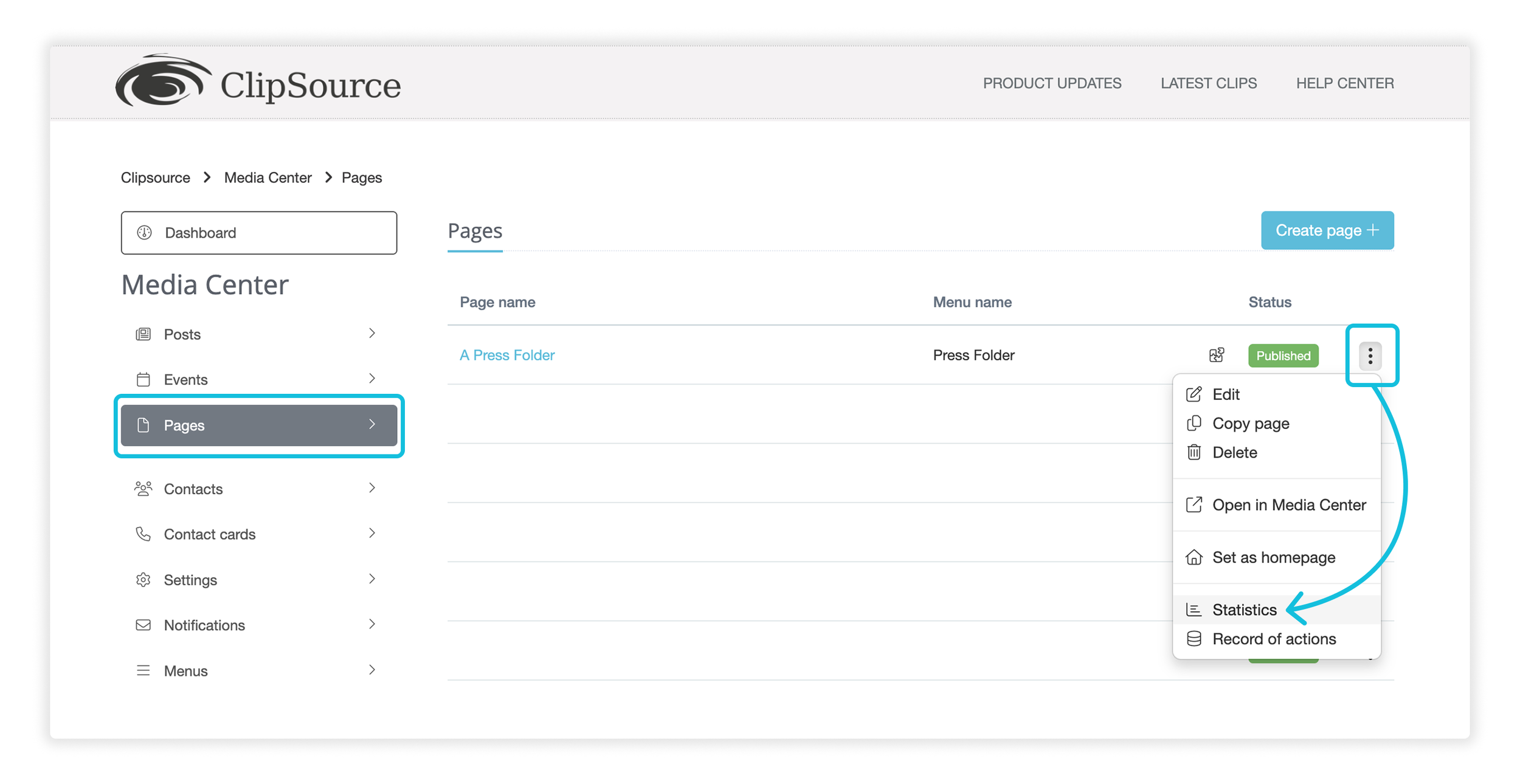
New: Page statistics for Page Builder
Pages created with Page Builder now have their own dedicated statistics view. You can track how your pages perform — just like Posts — with insights into:
Total page views
Known users (when logged in)
Unknown users (for public pages)
Downloads made directly from media added via Page Builder components
This makes it easier to understand engagement with show pages, campaign pages, or other custom-built sections in Media Center.
Note: Download tracking currently applies to downloads triggered within Page Builder components (not downloads made directly from Mediabank collection views)
These statistics are available for all pages you may build in the pagebuilder, except for the page you have set as your homepage. Homepage traffic is currently not included in Page Statistics. For homepage insights, customers using Google Analytics can access that data in their own GA setup.
Where to find it: Media Center → Pages → Open three dot menu on a Page → Statistics
New: Contact form component in Page Builder
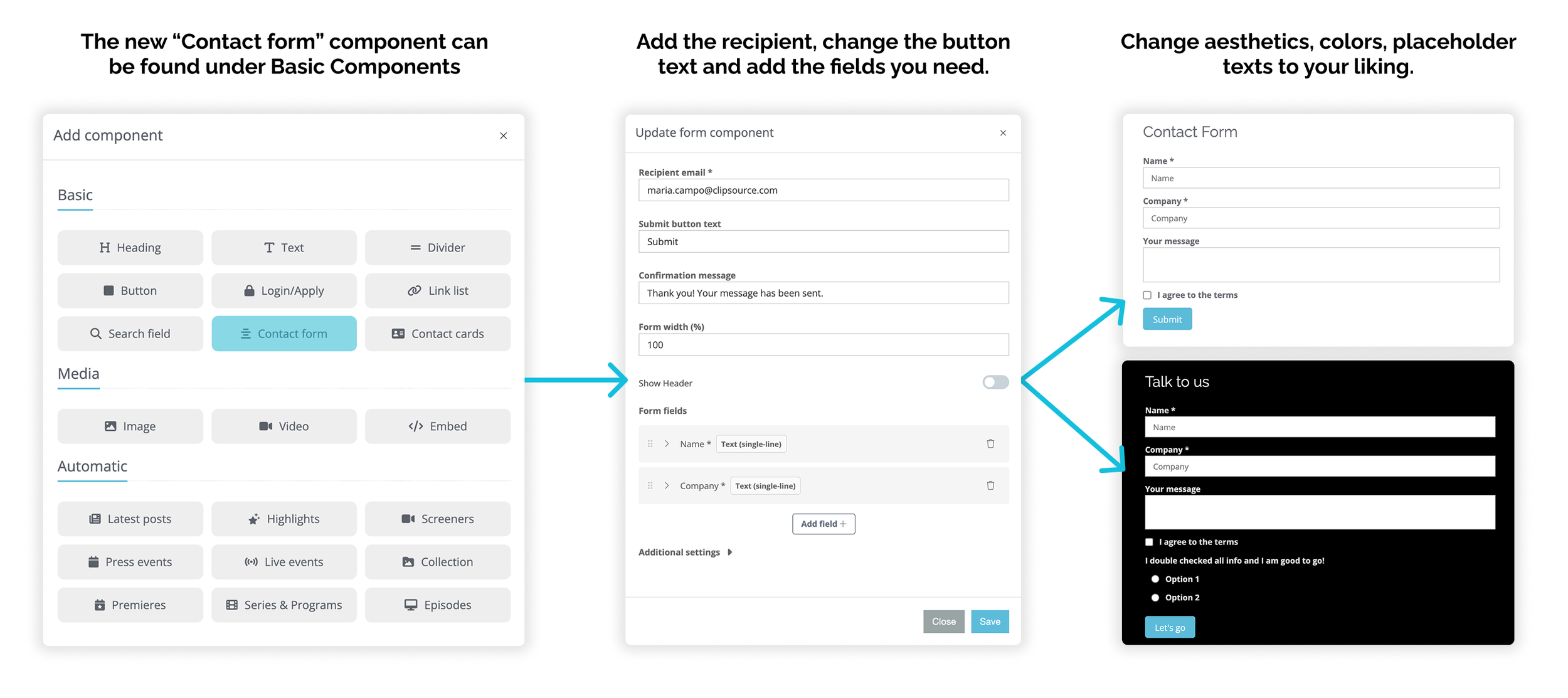
We’ve introduced a brand-new Contact form component in Page Builder — replacing the legacy form solution previously used in Websites and older Pages.
You can now:
Add contact forms directly to any Page Builder page
Define a recipient email (submissions are sent directly via email)
Customize confirmation messages
Use predefined fields (Name, Company, Email, Message)
Add custom fields as needed
Mark fields as mandatory
Add forms in both public and access-controlled setups
Clipsource does not store or process submissions — they are delivered directly to the defined recipient.
Where to find it: Media Center → Pages → Edit page or create a new one → Add component (Basic) → Contact Form
New: Contact cards on Page Builder
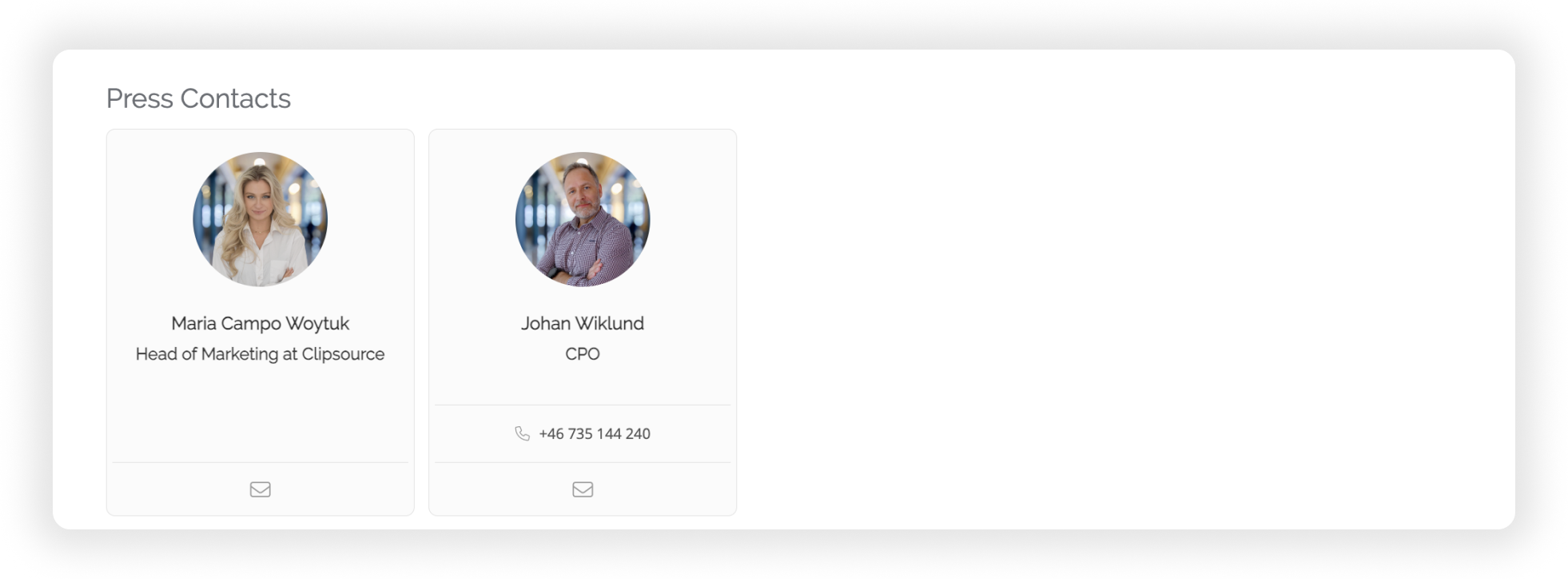
As per popular request, we have added a new component where you can display contact cards on any landing page you create.
Select the contacts you want (as many as needed)
Choose alignment (center, left or right)
Add a header if needed
Change the spacing and background color (also now fully UI adaptable, like other automatic components)
As mentioned in our last update, your contact cards will also be displaced nicer, by having a new and upgraded view, so all your contact card images look the same in a cohesive way.
Where to find it: Media Center → Pages → Edit page or create a new one → Add component (Basic) → Contact Cards
Improvements & Updates to existing features
Improvement: Merge tags when renaming
Managing large tag libraries just got easier. When renaming a tag, if the new name already exists, you’re now prompted to merge the tags.
If confirmed:
All connections are automatically moved
Duplicate tags are eliminated
Content structure becomes cleaner
This helps prevent long-term tag fragmentation and keeps filtering structured and professional.
Where to find it: Admin → Tags → Edit a tag → Rename to an existing tag name

Improvement: Publish tab clarity for Posts & Events
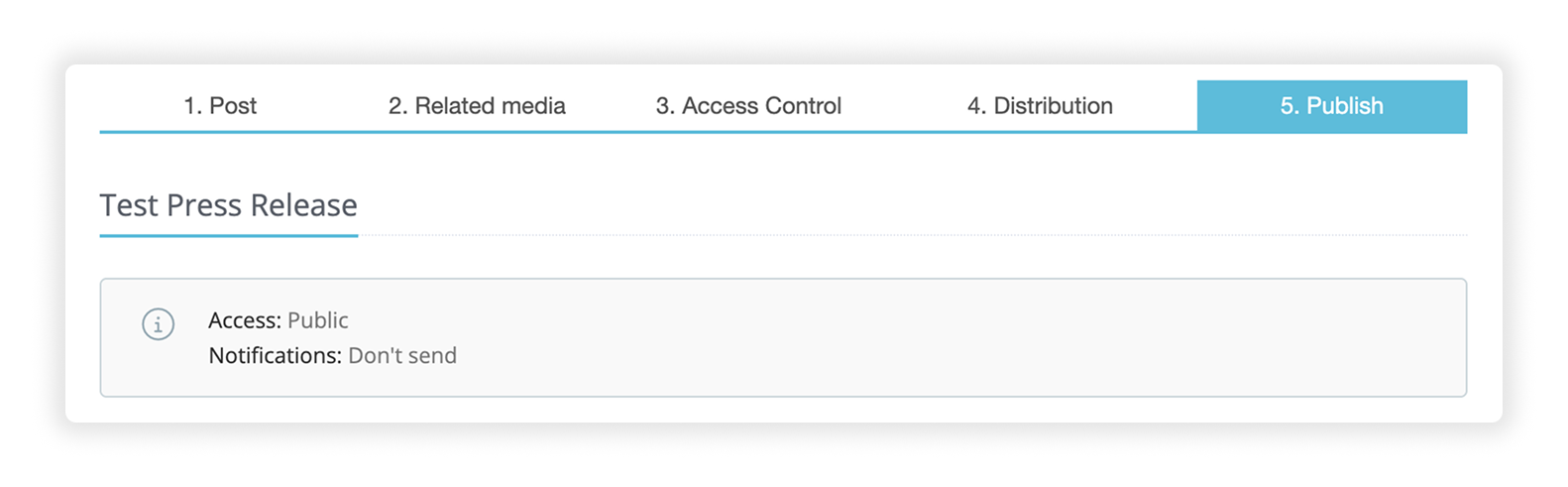
We’ve added an information panel in the Publish tab for Posts and Events. Before publishing, you now see a clear summary of:
Access control settings
Notification choices
If the post is scheduled for publishing
This gives editors a final confirmation of what will happen once content is published — reducing mistakes and increasing confidence. The panel is only shown for unpublished content.
Where to find it: Media Center → Open Post or Event → 5. Publish tab (visible before publishing)
Upgrade: Extended news API
The News API has been expanded with additional structured data. Newly supported fields:
Publisher and author information (relevant for Book customers)
Tags
Including tags in the API makes it easier to build structured external news pages, menus, or categorized sections on your own website using Clipsource data.
Where to find it: Available via News API endpoints (for customers using API integrations)
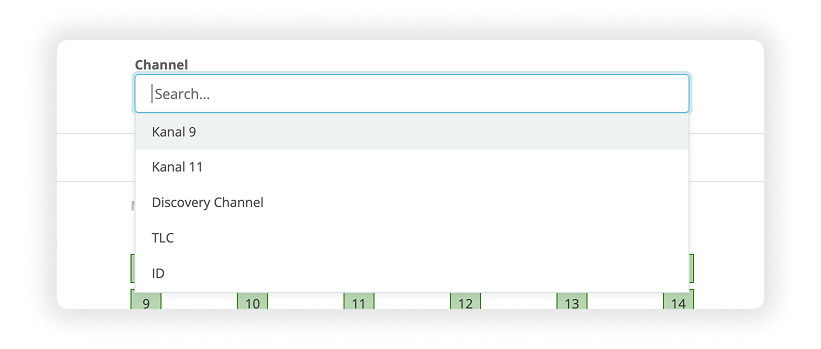
Improvement: Searchable channel selector (Schedules)
The channel dropdown in Admin → Schedules now supports search.
Start typing to instantly filter channels — especially helpful for customers managing many channels. This improves navigation speed and reduces friction in schedule management.
Where to find it: Admin → Schedules → Channel selector dropdown
Improvement: Schedule (EPG) Admin performance
We’ve significantly improved loading performance in the Admin Schedule view. By optimizing validation logic and rebuilding how the list is generated:
Page load times are noticeably faster
Large schedule datasets are handled more smoothly
The overall experience is more responsive
For customers working with heavy EPG data, this is a major usability improvement.
Where to find it: Admin → Schedules
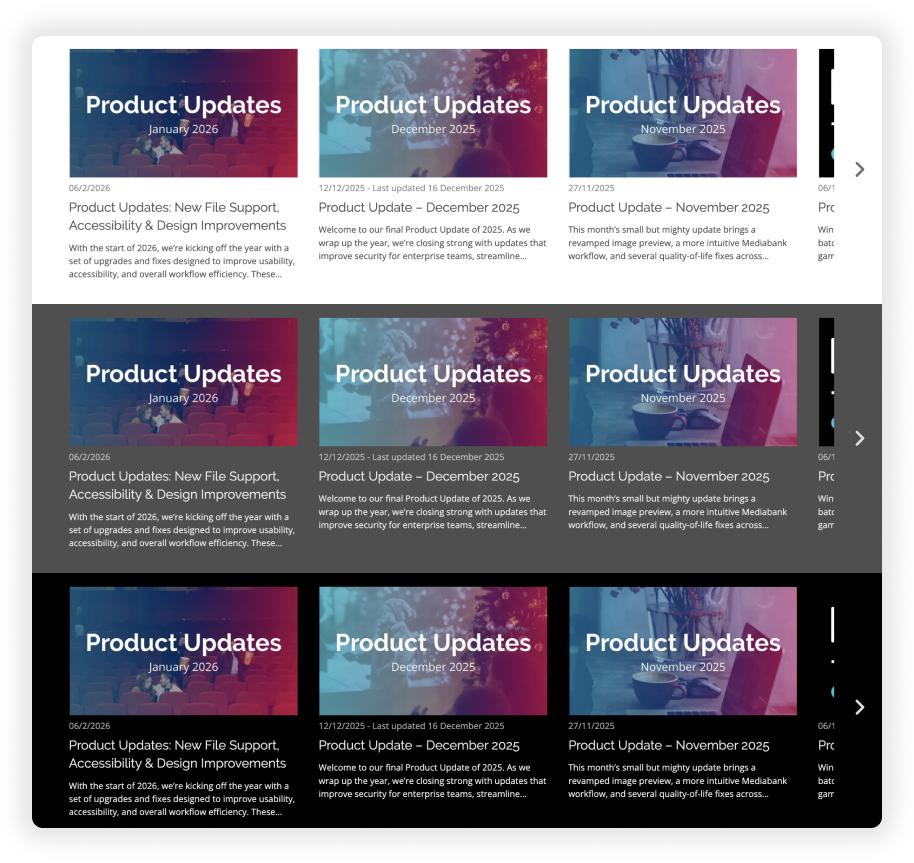
Improvement: Adaptive UI colours in Automatic components
Automatic components in Media Center now adapt to background colours automatically.
When you change a background colour:
Text switches between light and dark tones
Buttons adapt
Icons adjust
Labels maintain contrast
Borders and frames adjust where applicable
This works across all automatic components (e.g. Latest Posts, related content components, etc.). The result:
Improved readability
Better accessibility support
Greater design flexibility
Consistent visual hierarchy across branded backgrounds
Where to find it: Media Center → Pages → Automatic components (background colour settings in any automatic component.
Other fixes
Fix: Photographer metadata display
Photographer information is now consistently shown in the image preview modal. Previously, this metadata was missing in some views.
Where to find it: Media Center → Open image preview modal
Fix: External video as poster in Media Center
Resolved an issue where external videos (e.g. YouTube embeds) could not reliably be saved as poster thumbnails.
External media now:
Saves correctly as poster
Persists after editing
Displays consistently in published view
Where to find it: Media Center → Post → Related Media → Set external video as poster
That's all folks! As always if you have any questions, we got your back over at support@clipsource.com